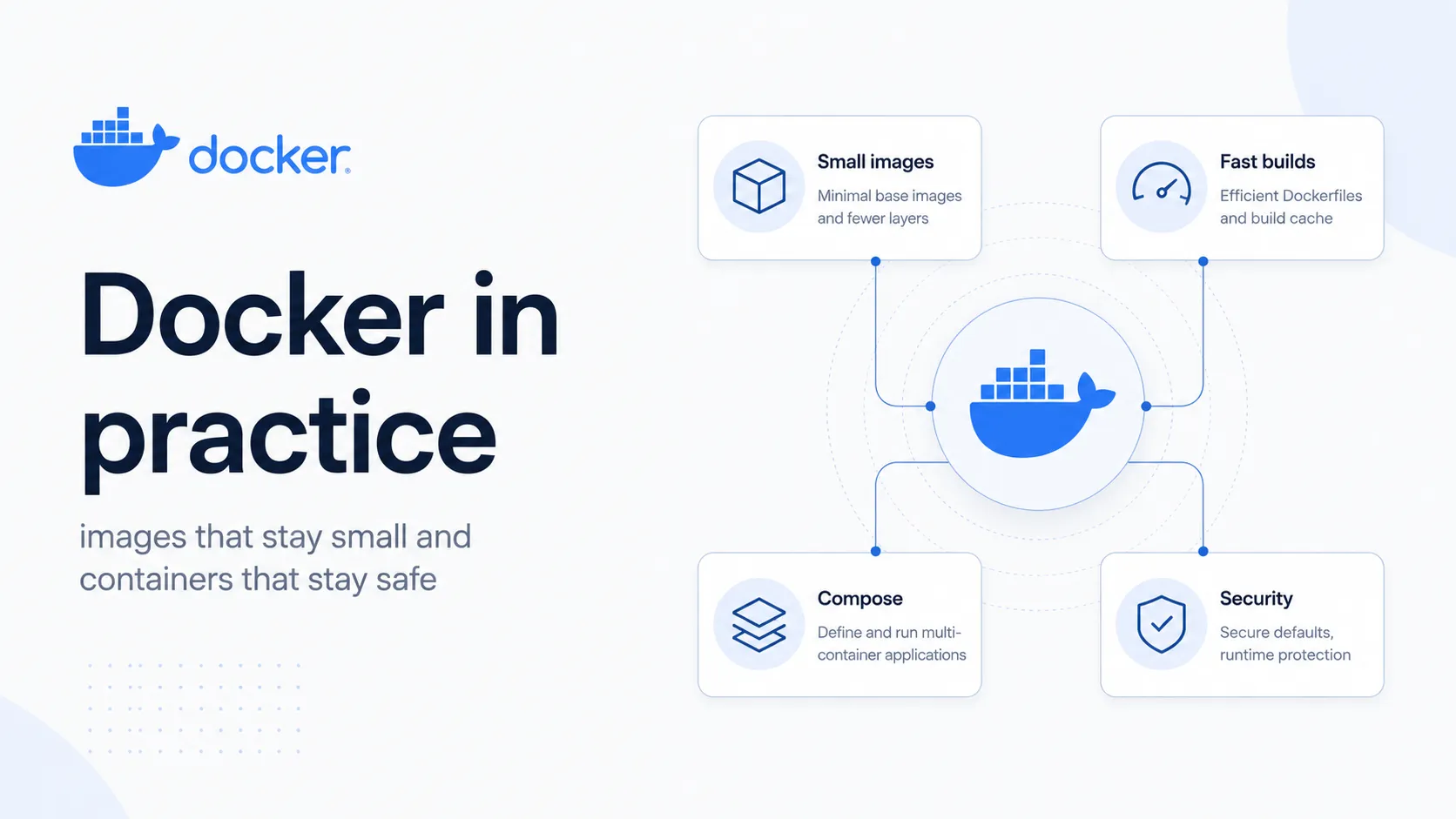
Docker's pitch has not changed in thirteen years: package an application with everything it needs, run it identically everywhere. The pitch is still true. What has changed is everything around it - the daemon is no longer the only runtime, Docker Desktop is no longer free for larger companies, Docker Hub now rate-limits pulls, and the images most teams ship are three times larger than they need to be.
This is a working guide: how containers actually function, Dockerfiles that build fast and stay small, Compose for real projects, the security defaults worth changing on day one, an honest account of the rough edges, and where the alternatives now make more sense.
What a container actually is
The most useful thing you can learn about Docker is that a container is not a virtual machine. It is an ordinary Linux process with a restricted view of the system. There is no guest kernel, no hypervisor, no virtualised hardware - just a process that has been lied to about what exists around it.
Three kernel features do the work. Namespaces control what a process can see: its own process tree, network interfaces, mount points, hostname and user IDs. Control groups control what it can use: memory, CPU, block I/O, process count. A union filesystem stacks read-only image layers with a thin writable layer on top, which is why starting a container is fast and why a hundred containers from one image do not need a hundred copies of it.
| Virtual machine | Container | |
|---|---|---|
| Kernel | Its own guest kernel | Shares the host kernel |
| Start time | Tens of seconds | Milliseconds |
| Size on disk | Gigabytes | Megabytes |
| Isolation strength | Hardware-level, very strong | Kernel-level, strong but shared |
| Density per host | Tens | Hundreds or thousands |
| Running a different OS kernel | Yes | No - Linux containers need a Linux kernel |
Images, layers and containers
An image is a stack of read-only layers plus metadata. A container is a running instance of an image with a writable layer on top. Every instruction in a Dockerfile that changes the filesystem creates a layer, and layers are cached and shared between images.
# Each of these becomes a layer, cached independently
FROM node:22-alpine        # layer: the base image
WORKDIR /app               # metadata only, no filesystem change
COPY package*.json ./      # layer: two small files
RUN npm ci                 # layer: node_modules, possibly hundreds of MB
COPY . .                   # layer: your source
CMD ["node", "server.js"] # metadata onlyGetting started
# Linux - use Docker's repository, not the distro package
curl -fsSL https://get.docker.com | sh
sudo usermod -aG docker $USER   # log out and back in

# macOS
brew install --cask docker

# Verify
docker version
docker run --rm hello-worlddocker group is equivalent to giving them root on the host. Convenient on a laptop, a deliberate decision on a server.The commands you will actually use
# Run something disposable
docker run --rm -it alpine sh

# Run a service in the background with a port mapped
docker run -d --name pg -p 5432:5432 -e POSTGRES_PASSWORD=secret postgres:18

# What is running
docker ps
docker ps -a                    # including stopped

# Look inside
docker logs -f pg
docker exec -it pg psql -U postgres
docker inspect pg
docker stats                    # live resource usage

# Clean up
docker stop pg && docker rm pg
docker system df                # where the disk went
docker system prune -a --volumes # reclaim it - this deletes data, read it twiceWriting a Dockerfile properly
Layer caching, and the ordering that matters
Docker rebuilds a layer only when its inputs change, and everything after a changed layer is rebuilt too. So the rule is: put the things that change least at the top. Dependencies change weekly; your source changes hourly.
# Slow: any source change reinstalls every dependency
COPY . .
RUN npm ci

# Fast: dependencies only reinstall when the manifest changes
COPY package.json package-lock.json ./
RUN npm ci
COPY . .Multi-stage builds
Build tools, compilers and dev dependencies are needed to produce your application and have no business shipping with it. Multi-stage builds let you use a fat image to build and copy only the result into a thin one.
# syntax=docker/dockerfile:1

# ---------- build stage ----------
FROM node:22-alpine AS build
WORKDIR /app

COPY package.json package-lock.json ./
RUN --mount=type=cache,target=/root/.npm \
    npm ci

COPY . .
RUN npm run build
RUN npm prune --omit=dev

# ---------- runtime stage ----------
FROM node:22-alpine AS runtime
WORKDIR /app

ENV NODE_ENV=production

# Copy only what runs, and own it as the unprivileged user
COPY --from=build --chown=node:node /app/node_modules ./node_modules
COPY --from=build --chown=node:node /app/dist ./dist
COPY --from=build --chown=node:node /app/package.json ./

USER node
EXPOSE 3000

HEALTHCHECK --interval=30s --timeout=3s --start-period=10s \
  CMD node -e "fetch('http://localhost:3000/health').then(r=>process.exit(r.ok?0:1)).catch(()=>process.exit(1))"

CMD ["node", "dist/server.js"]
RUN --mount=type=cache keeps the package manager's cache between builds without baking it into a layer. It needs the # syntax line at the top to enable BuildKit's newer features.For compiled languages the saving is dramatic. A Go build stage might be 800MB; the runtime stage can be a scratch image containing one static binary.
FROM golang:1.25-alpine AS build
WORKDIR /src
COPY go.mod go.sum ./
RUN go mod download
COPY . .
RUN CGO_ENABLED=0 go build -ldflags="-s -w" -o /app ./cmd/server

FROM gcr.io/distroless/static-debian12:nonroot
COPY --from=build /app /app
USER nonroot
ENTRYPOINT ["/app"]docker exec … sh for debugging - and also nothing for an attacker to use if they get in..dockerignore
The build context is everything Docker sends to the daemon before the build starts. Without a .dockerignore, that includes node_modules, .git, build output and any .env file sitting in the directory. It is slow and it is a leak.
.git
.github
node_modules
dist
build
coverage
.env
.env.*
*.log
Dockerfile*
docker-compose*.yml
README.mdCMD and ENTRYPOINT, and why exec form matters
# Shell form: runs via /bin/sh -c, so your process is PID 2
CMD node server.js
# Signals go to the shell. SIGTERM never reaches your app.
# Result: docker stop waits 10 seconds, then SIGKILLs. No graceful shutdown.

# Exec form: your process is PID 1 and receives signals directly
CMD ["node", "server.js"]ENTRYPOINT sets the executable, CMD sets the default arguments. Using ENTRYPOINT ["node", "server.js"] with CMD for flags means docker run myimage --verbose appends the flag rather than replacing the command.
# Handle signals correctly when your process spawns children
docker run --init myimage

# or in the Dockerfile, for images that need a proper init
# ENTRYPOINT ["/sbin/tini", "--", "node", "server.js"]
--init inserts a tiny init process that reaps zombies and forwards signals. Worth knowing when a container refuses to stop cleanly.Compose for real projects
Compose describes a set of services, their networks and their volumes in one file. For local development it is the reason Docker is worth the trouble: one command brings up your app, its database, its cache and its worker, wired together.
name: shop

services:
  api:
    build:
      context: .
      target: runtime
    ports:
      - "3000:3000"
    environment:
      DATABASE_URL: postgres://postgres:secret@db:5432/shop
      REDIS_URL: redis://cache:6379
    depends_on:
      db:
        condition: service_healthy
      cache:
        condition: service_started
    develop:
      watch:
        - action: sync
          path: ./src
          target: /app/src
        - action: rebuild
          path: package.json

  db:
    image: postgres:18
    environment:
      POSTGRES_PASSWORD: secret
      POSTGRES_DB: shop
    volumes:
      - pgdata:/var/lib/postgresql/data
    healthcheck:
      test: ["CMD-SHELL", "pg_isready -U postgres"]
      interval: 5s
      timeout: 3s
      retries: 10
    ports:
      - "127.0.0.1:5432:5432"   # bound to localhost only

  cache:
    image: redis:8-alpine
    command: ["redis-server", "--save", "", "--appendonly", "no"]

volumes:
  pgdata:
depends_on with condition: service_healthy waits for the database to actually accept connections. Plain depends_on only waits for the container to start, which is almost never what you want.docker compose up -d # start everything
docker compose up --watch # start with live file sync and rebuilds
docker compose logs -f api # follow one service
docker compose exec db psql -U postgres shop
docker compose ps # status and health
docker compose down # stop and remove containers
docker compose down -v # …and delete the volumes. Destroys your data.docker compose with a space is the current plugin. docker-compose with a hyphen is the legacy standalone v1 tool.Services reach each other by service name over an automatically created network - db:5432 resolves from the api container. Note the 127.0.0.1:5432:5432 binding on the database: publishing a port as plain 5432:5432 exposes it on every interface, which on a cloud VM means the internet.
Data, volumes and bind mounts
| Type | Where it lives | Use it for |
|---|---|---|
| Named volume | Managed by Docker on the host | Databases and anything that must survive the container |
| Bind mount | A specific host path | Source code in development, config files |
| tmpfs mount | Host memory only | Secrets and scratch data that must never touch disk |
| Anonymous volume | Docker-managed, unnamed | Almost never - they accumulate and nobody cleans them up |
# Named volume - Docker manages the location
docker run -v pgdata:/var/lib/postgresql/data postgres:18

# Bind mount - you specify the host path
docker run -v "$(pwd)/src:/app/src" myapp

# Read-only bind mount, which is what config should almost always be
docker run -v "$(pwd)/nginx.conf:/etc/nginx/nginx.conf:ro" nginx

# tmpfs - in memory, gone when the container stops
docker run --tmpfs /tmp:rw,noexec,nosuid,size=64m myapp

# Back a volume up
docker run --rm -v pgdata:/data -v "$(pwd)":/backup alpine \
  tar czf /backup/pgdata.tar.gz -C /data .
Named volumes are the right default for state. They are faster than bind mounts on macOS and Windows, they survive docker compose down, and Docker knows about them so they can be backed up and inspected.
Security defaults worth changing
Docker's defaults optimise for getting started, not for running in production. Four changes cover most of the gap.
Do not run as root
By default the process inside a container runs as root. It is a namespaced root with a reduced capability set, so it is not host root - but combined with a kernel vulnerability or a careless mount it is a much shorter path to one than it needs to be.
# In the Dockerfile
RUN addgroup -S app && adduser -S -G app app
USER app

# Or at run time, with a hardened profile
docker run \
  --user 1000:1000 \
  --read-only \
  --tmpfs /tmp \
  --cap-drop ALL \
  --security-opt no-new-privileges \
  --memory 512m --cpus 1.5 \
  --pids-limit 200 \
  myapp
--read-only with a tmpfs for scratch space is the strongest single hardening step. Most applications need nothing writable except /tmp.Never put secrets in the image
# Wrong - visible in `docker history`, shipped in the layer, deleting it later does nothing
ENV API_KEY=sk_live_abc123
COPY .env /app/.env

# Right at build time - BuildKit secret mounts never enter a layer
RUN --mount=type=secret,id=npm_token \
    NPM_TOKEN=$(cat /run/secrets/npm_token) npm ci

# docker build --secret id=npm_token,env=NPM_TOKEN .

# Right at run time - environment from the orchestrator or a secrets manager
docker run --env-file <(vault kv get -format=json … ) myapp
docker history --no-trunc <image> shows every build argument and environment variable. Assume anyone with the image can read them.Treat the Docker socket as root
Pin, scan and rebuild
# A tag is a moving target; a digest is not
FROM node:22-alpine@sha256:8e4c9f2b…

# Scan before you push
docker scout cves myapp:latest
trivy image myapp:latest

# See what is actually inside
docker sbom myapp:latestMaking images small
| Change | Typical effect |
|---|---|
| Multi-stage build | The largest single win - often 60–90% smaller |
| Alpine or slim base instead of the full image | Hundreds of megabytes |
| Distroless or scratch for compiled languages | Down to the binary plus a few megabytes |
Combining RUN steps that install and clean up | Avoids shipping package caches in a layer |
A real .dockerignore | Faster builds, and stops secrets entering the context |
--omit=dev / --no-dev before copying dependencies | Removes the entire dev dependency tree |
# Combine install and cleanup in ONE RUN - separate steps ship the cache
RUN apt-get update \
 && apt-get install -y --no-install-recommends curl ca-certificates \
 && rm -rf /var/lib/apt/lists/*

# Inspect where the size went
docker history myapp:latest
docker images myapp --format '{{.Size}}'

# dive is the best tool for this - it shows wasted bytes per layer
dive myapp:latest
Alpine deserves one caveat. It uses musl rather than glibc, which occasionally causes subtle differences - DNS resolution behaviour, some native modules, and historically measurable performance differences in Python workloads. When something works on Debian and fails on Alpine, musl is the first thing to check. The -slim Debian variants are a reasonable middle ground.
Running containers in production
Docker Engine runs production workloads on plenty of single hosts. What it does not give you is scheduling, self-healing across machines, rolling updates or service discovery beyond one host. That is the line where Kubernetes or a managed container service starts to earn its complexity.
services:
  api:
    image: registry.example.com/shop/api:1.4.2   # a real tag, never :latest
    restart: unless-stopped
    healthcheck:
      test: ["CMD", "curl", "-fsS", "http://localhost:3000/health"]
      interval: 30s
      timeout: 3s
      retries: 3
      start_period: 20s
    deploy:
      resources:
        limits:
          memory: 512M
          cpus: "1.0"
    logging:
      driver: json-file
      options:
        max-size: "10m"
        max-file: "3"
stop_grace_period: 30slogging block is not optional. Docker's default json-file driver has no rotation, and an unbounded container log filling the disk is one of the most common production incidents there is.- Always set memory limits. Without one, a leaking container will consume the host and take its neighbours with it.
- Handle SIGTERM. Docker sends it, waits
stop_grace_period, then sends SIGKILL. Your application should stop accepting connections, finish in-flight requests, and exit. - Log to stdout and stderr. Let the platform collect them. Writing log files inside a container is how you lose them.
- Never deploy
:latest. It makes rollback ambiguous and turns a redeploy into a lottery. - Configure the daemon's log rotation globally in
/etc/docker/daemon.jsonso new containers inherit it. - Use
docker compose up -d --waitin deployment scripts so the command fails if a service does not become healthy.
The honest downsides
Docker Desktop is not free for everyone
Docker Engine on Linux is Apache 2.0 open source. Docker Desktop - the macOS and Windows application - is proprietary, under an end-user licence agreement, and requires a paid subscription for commercial use at companies above the published size and revenue thresholds. Teams that assumed Docker was free have been surprised by this, and it is the most common reason engineering organisations evaluate Podman, Colima or OrbStack.
Docker Hub rate limits
Since 2020, anonymous pulls are limited to 100 per six hours per IPv4 address or IPv6 /64 subnet. Authenticated Personal accounts get 200. Paid tiers are unlimited under a fair use policy. There is a separate abuse rate limit, in the order of thousands of requests per minute, that returns a bare 429.
The daemon is a single point of failure
Docker's architecture puts a long-running root daemon between you and your containers. If it dies, you lose visibility of everything it manages, and by default the containers go with it. Live restore mitigates this, and rootless mode reduces the privilege exposure, but the daemon model is precisely what Podman was built to avoid.
Filesystem performance on macOS and Windows
Because Linux containers need a Linux kernel, Docker Desktop runs a VM. Bind mounts cross the host-to-VM boundary, and the result is noticeably slow for large directories - node_modules and vendor are the classic cases. VirtioFS, synchronized file shares and named volumes all help. It is meaningfully better than it was three years ago, and it is still not native speed.
Disk usage grows silently
docker system df -v      # images, containers, volumes, build cache, per item
docker builder prune # BuildKit cache alone can reach tens of gigabytesdocker images. Check docker system df before blaming the log files.A container is not a security boundary against the kernel
Containers share the host kernel, so a kernel vulnerability is a potential escape route in a way it is not for a virtual machine. Docker Desktop has shipped fixes for container-to-host privilege escalations in the past year alone. For genuinely untrusted code, the right answer is a VM boundary - gVisor, Kata Containers, Firecracker - not a container with extra flags.
It does not fix your architecture
Containerising a system that has hidden coupling, unclear configuration and no health checks produces the same system with more YAML. Docker makes deployment reproducible; it does not make a poorly-factored application well-factored.
The alternatives
| Tool | What it is | Consider it when |
|---|---|---|
| Podman | Daemonless, rootless by default, largely Docker-CLI compatible | You want no root daemon, or you want to avoid Desktop licensing |
| containerd + nerdctl | The runtime Docker itself uses, with a Docker-like CLI | You want the layer underneath without the rest |
| Buildah | Image building without a daemon | CI where you build images but never run them |
| Colima / OrbStack / Rancher Desktop | Docker-compatible environments for macOS | You need Docker on a Mac without Docker Desktop |
| Kubernetes | Orchestration across many hosts | You have outgrown a single machine and need scheduling and self-healing |
| Nix / Bazel | Reproducible builds without containers | Build reproducibility is the real problem you were solving |
alias docker=podman covers a surprising amount. Compose support exists but is not always identical, so test it before committing.Worth remembering that images themselves are standardised. The OCI image and runtime specifications mean a Docker-built image runs under Podman, containerd or Kubernetes without modification. Switching tooling does not mean rebuilding everything.
Mistakes that keep recurring
| Mistake | Consequence |
|---|---|
COPY . . before installing dependencies | Every source change reinstalls the whole dependency tree |
No .dockerignore | Slow builds, bloated context, secrets shipped by accident |
Shell-form CMD | SIGTERM never reaches your process; no graceful shutdown |
| Running as root | An unnecessary privilege on every container you ship |
Secrets in ENV or ARG | Permanently readable via docker history |
Deploying :latest | Ambiguous rollbacks and non-reproducible deploys |
| No memory limit | One leaking container takes down the host |
| No log rotation | Disk fills, everything stops |
Publishing ports as 0.0.0.0 | Your database is on the public internet, past your firewall |
| Storing state in the container's writable layer | Data disappears on the next deploy |
One RUN per apt command | Package caches shipped inside the image forever |
| Mounting the Docker socket casually | Root-equivalent access granted to whatever asked for it |
A learning path
- Week one. Run other people's images.
docker runa database, a Redis, an nginx. Learnps,logs,exec,inspectandstats. Understand ports, then volumes. - Week two. Write a Dockerfile for something you already built. Get it working, then make it small: multi-stage, correct layer ordering, a
.dockerignore, a non-root user. - Week three. Compose. Bring up your app with its real dependencies, with health checks and
depends_onconditions that actually wait. Use--watchfor the development loop. - Month two. Build in CI, push to a registry, deploy to one server. Add resource limits, log rotation, graceful shutdown and a health check that means something.
- Month three. Security and size. Scan images, pin digests, drop capabilities, run read-only. Read the Dockerfile best practices page properly - it is short and most of it is not obvious.
- Then decide about orchestration. Only move to Kubernetes when a single host genuinely stops being enough. It solves real problems and it charges real complexity for them.
Verdict
Docker solved a real problem and solved it well enough that the solution became infrastructure. Reproducible environments, a portable artifact format, one command to bring up a full development stack - these are genuine improvements over what came before, and the OCI standards mean the artifact outlives the tool that built it.
The costs are mostly avoidable and mostly ignored. Images three times larger than necessary, secrets baked into layers, containers running as root with no memory limit, ports published to the internet past a firewall that cannot see them. None of that is Docker's fault exactly, but the defaults do not push you away from any of it.
Learn layer caching, multi-stage builds and the
USERinstruction. Those three things fix most of what is wrong with most Dockerfiles.
If you are starting out, use Docker. The tooling is the most complete, the documentation is good, and every deployment platform speaks it. If you are on macOS at a company large enough for Desktop licensing to matter, look at Podman, Colima or OrbStack - the images are the same either way. And whatever you use, go and read your own Dockerfiles this week. There is a multi-stage build and a non-root user waiting to be added to at least one of them.
Sources
- Docker documentation - engine, build, compose and security manuals
- Dockerfile best practices - the official guidance, worth reading end to end
- Docker Hub usage and limits - the authoritative pull rate figures
- Build secrets - BuildKit secret mounts
- Rootless mode - running the daemon without root
- Docker Desktop release notes - including the security fixes referenced above
- Open Container Initiative - the image and runtime specifications